
Step by step
1Transfer a call straight away
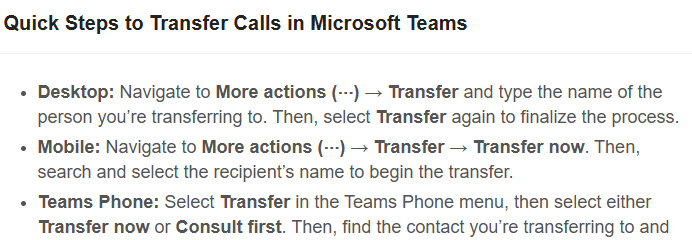
During the call select More actions (…) › Transfer › Transfer. Search for the person or number and select Transfer. The call leaves your screen once it’s handed over.
2Consult before transferring
A Consult Transfer (also known as a Consultative or Warm Transfer) in Microsoft Teams allows an agent to speak with the receiving person before transferring the caller.
This is particularly useful in contact centres and customer service environments where agents need to:
- Introduce the caller to the receiving agent.
- Explain the reason for the transfer.
- Confirm the receiving agent is available to take the call.
- Ensure a smooth customer experience without the caller having to repeat their enquiry.
Microsoft Teams desktop app: standard calling interface
1. Open the call controls
- While speaking to the customer, locate the call controls toolbar.
- Select the three dots (More actions) or the Transfer icon, depending on your Teams interface.
2. Select Consult then transfer
- From the menu, select Consult then transfer.
- The original customer is placed on hold.
3. Select the person you want to transfer to
- Enter the recipient’s name or phone number.
- Select the correct contact.
- Choose the consultation option.
4. Consult with the receiving agent
If you select an audio call:
- Wait for the receiving agent to answer.
- Speak privately with them.
- Explain who the customer is and why they are being transferred.
- Confirm the receiving agent is happy to accept the call.
The customer remains on hold during the consultation.
5. Complete the transfer
Once the receiving agent has agreed to take the call:
- Select Transfer.
- Teams connects the original customer to the receiving agent.
- Your call ends once the transfer is completed successfully.
3Put a caller on hold
- During your call, go to the top bar of the call window.
- Click the More actions button (represented by three dots …).
- Select Hold from the drop-down menu.
- To continue your conversation, click Resume at the top of the call window.
While a call is on hold, your audio and video are paused, a timer appears, and other participants cannot see or hear you.
4Park a call
- During an active call in Teams, click More actions (the three dots …) in your call window.
- Select Call park (or Park call).
- Teams will place the call on hold and display a unique pickup code (for example, 10 or 11) on your screen.
- Copy the code or share it with the person who needs to answer the call.
5Pick up a parked call
- On desktop / PC: go to the Calls tab on the left side of Teams, click Parked calls (or Unpark) beneath the dial pad or speed dial, enter the park code, and select Pick up.
- On the mobile app: navigate to the Calls screen, tap New call or the Parked call icon in the upper-right corner, and enter the code.
- On a physical desk phone: go to the Calls screen, touch Parked calls and enter the code.

FAQs
Why can’t I see Park call?
Call park is controlled by a policy your Teams admin sets. Ask them to enable it for your account.
Can I transfer to a mobile number?
Yes, if your account is allowed to make external calls. Type the full number in the Transfer search box.
What does the caller hear during a consult?
They’re on hold and hear hold music until you transfer or return to them.
Can I transfer to voicemail?
Yes, when transferring to a colleague, choose their voicemail from the transfer options if it’s available in your version of Teams.
Want your team trained on this?
We deliver hands-on training tailored to your setup, on-site or online.