
Step by step
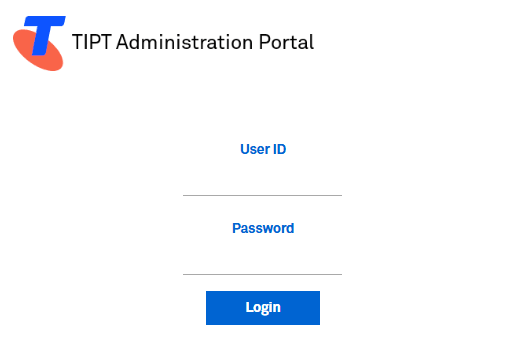
1Sign in to CommPilot
- Enter the TIPT URL.
- Enter your user ID.
- Enter your password.
2Set up voicemail
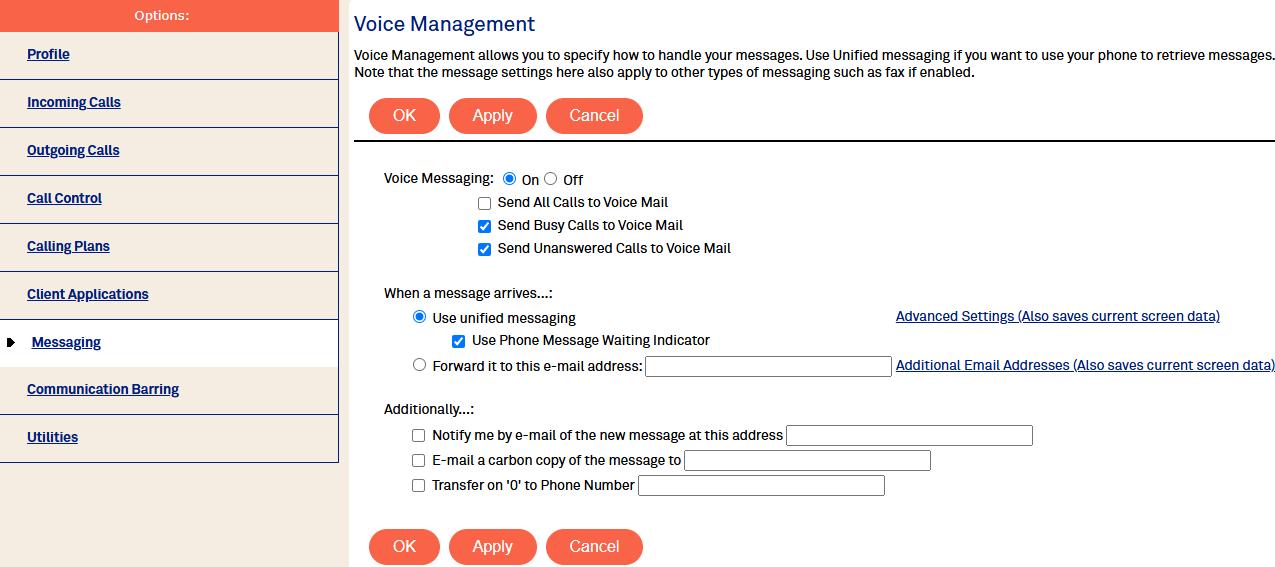
To set up voicemail for a user:
- Sign in to CommPilot.
- Navigate to the user that requires voicemail: choose Profile › Users › Search.
- Select the user.
- Select Messaging › Voice Management.
- Select On › OK.
3Forward your calls
To forward calls for a user:
- Sign in to CommPilot.
- Navigate to the user: choose Profile › Users › Search.
- Select the user.
- Select Incoming Calls.
- Select the relevant forwarding required: Call Forwarding Always, Call Forwarding Busy or Call Forwarding No Answer.
- Select On › OK.
4Use Do Not Disturb
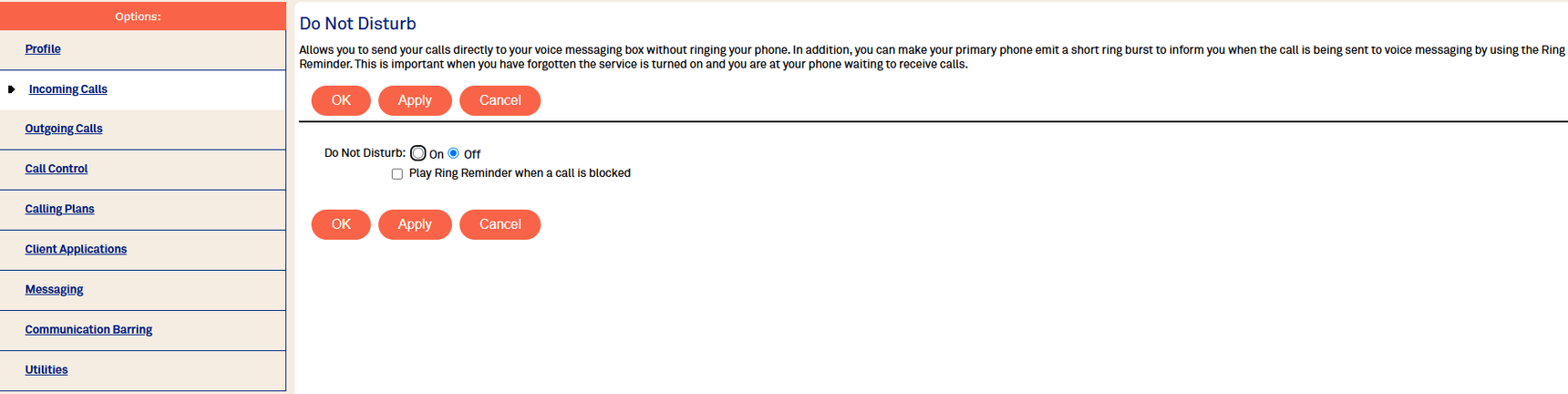
To turn Do Not Disturb on for a user:
- Sign in to CommPilot.
- Navigate to the user: choose Profile › Users › Search.
- Select the user.
- Select Incoming Calls.
- Select Do Not Disturb.
- Select On › OK.


FAQs
I’ve forgotten my CommPilot password, what do I do?
Your TIPT group administrator can reset it.
Can I forward calls to my mobile?
Yes, if your account allows external forwarding. Use Call Forwarding Always or No Answer in CommPilot.
Want your team trained on this?
We deliver hands-on training tailored to your setup, on-site or online.